- Double click the double computer icon in the lower right-hand corner of your screen.
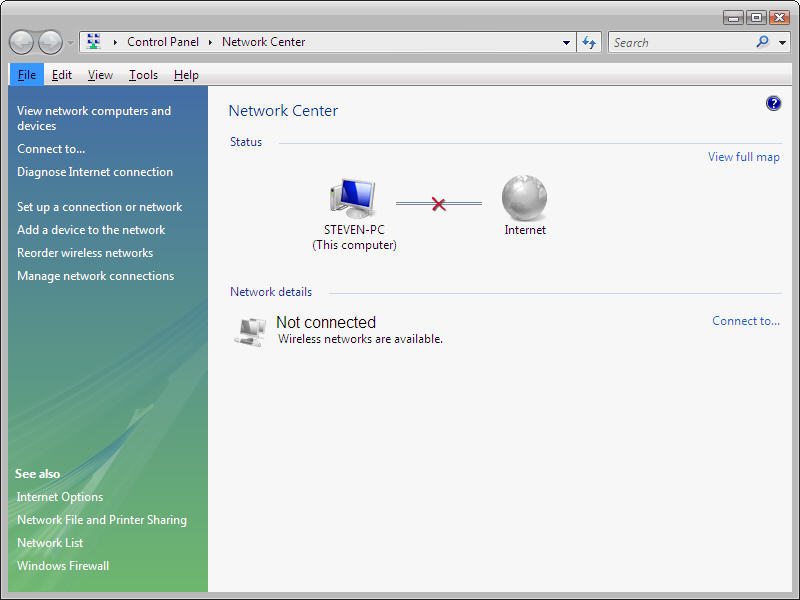
- The Network Center appears which shows a graphical presentation of your network.
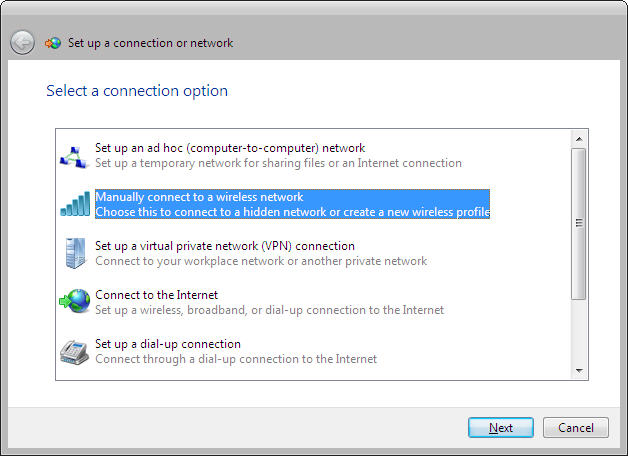
- If you do not broadcast your ssid, you will need to configure a manual connection.
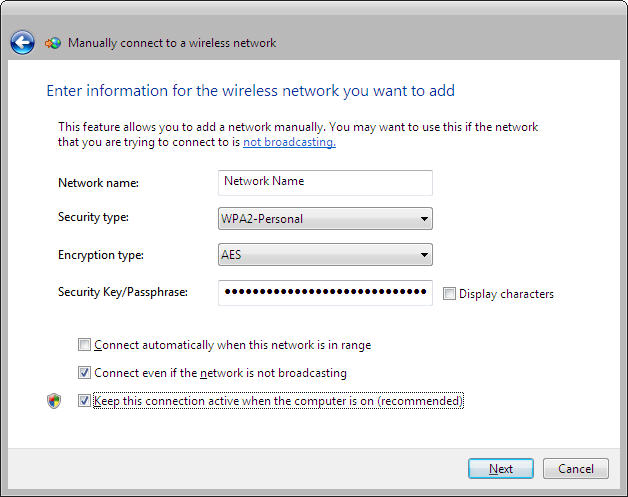
- Enter the applicable information such as Network Name, Security Type, Encryption Type, and Passphrase.
- You are now ready to connect to your wireless network.
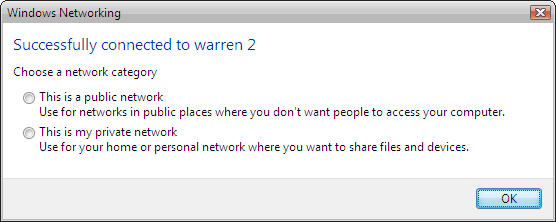
- With Windows Vista, you now have the ability to choose whether your wireless connection is for a public or private network for added security.
- You can now go back to the Network Center and view your graphical display of the connection and set further options.
Showing posts with label Windows Vista. Show all posts
Showing posts with label Windows Vista. Show all posts
Saturday, April 10, 2010
configuring a wireless Internet connection in Windows Vista
Here are the steps :




Saturday, March 27, 2010
10 cool new shortcuts in Windows Vista
I came across these shortcuts in Windows Vista and felt they were worthy of sharing.
To access these shortcuts press the Windows key + the appropriate letter.
- Win + G - Cycles the Gadgets selections.
- Win + Spacebar - Brings Gadgets to the front.
- Win + X - Cycles though the Mobility Center.
- Win + Tab - Activates Flip 3-D.
- Win + U - Activates the Ease of Use Center.
- Win + T - Cycles through Taskbar Programs.
- Win + D - Show Desktop
- Win + M - Minimize windows
- Win + L - Lock your computer
- Win + F - Search for files
Vista "dump" file
Here is a nice feature that I found when poking around Windows Vista. In Windows Vista, you can create dump files that are stored in the Temp directory.
Dump files are really useful when you need to troubleshoot BSOD, application crashes, freezing, and any problem a Windows box maybe exhibiting.
Here are the steps to create a dump file in Windows Vista.
- Open Task Manager.
- Right-click on applicable process.
- Select Create Dump. A dialog box will appear with the path of the file. Typically it will be in “c:\users\Appdata\Local\Temp\***.DMP.
- Open Dump file in applicable debugger tool such as WinDBG to troubleshoot your issue. You simply type Windbg in the Instant Search and choose File|Open Crash Dump.


Subscribe to:
Posts (Atom)